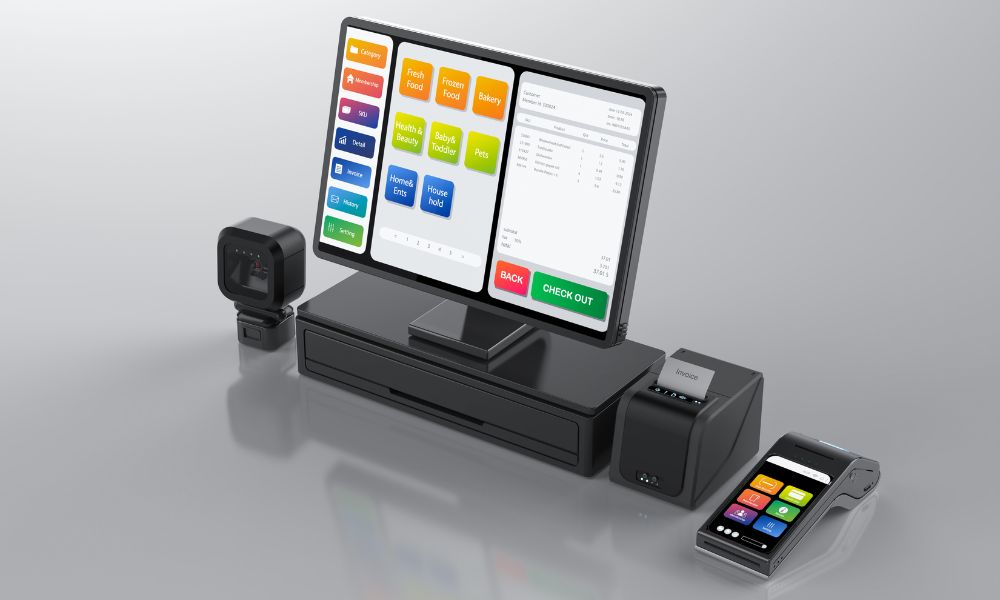
Setting up a reliable and efficient point-of-sale system is essential for any retailer. A good POS not only makes payment processing smoother but also helps with managing sales, tracking inventory, and improving customer experience. The Clover Duo is a popular choice for small and medium-sized businesses because it combines an intuitive touchscreen for staff with a customer-facing screen for easy payments. This all-in-one device allows retailers to manage their operations efficiently while giving customers a seamless checkout experience.
Getting started with a new POS system can feel overwhelming, especially if you’ve never set one up before. However, the Clover Duo is designed to be user-friendly and easy to configure with the right guidance. This step-by-step guide will walk you through everything from unboxing the device to completing your first transaction. By following these steps, you can ensure that your system is ready for daily business operations without unnecessary delays.
Unboxing and Checking Components
The first step in setting up your Clover Duo is to carefully unbox the device and check all the components. Inside, you should find the Clover Duo terminal, a power adapter, a power cord, and any included manuals. Take a moment to inspect the device for damage and ensure that everything is included. Missing parts or a damaged device can create unnecessary headaches during setup, so it’s important to verify everything before moving on.
Once you’ve confirmed all components are present, you can start preparing for the physical setup. This includes choosing the right spot on your counter for the device. Since the Clover Duo has both a staff-facing touchscreen and a customer-facing screen, it should be placed where both employees and customers can comfortably interact with it. Make sure it’s near a power outlet and, if you’re using a wired connection, an internet source.
Powering On and Connecting to the Internet
After choosing the location, plug in the Clover Duo using the provided power adapter. Turn on the device and follow the on-screen instructions to select your language and basic settings. One of the most important steps is connecting the device to the internet. Clover Duo supports both Wi-Fi and Ethernet connections, so choose the one that works best for your business setup. A strong and stable internet connection is crucial for processing payments, syncing inventory, and accessing other features.
Connecting via Wi-Fi is simple: select your network from the list, enter the password, and wait for confirmation. For Ethernet, simply plug the cable into the terminal, and the device should connect automatically. If you experience any connection issues, double-check your network settings or restart the device to ensure everything works correctly.
Setting Up Your Clover Account
The next step is creating or logging into your Clover account. Your account connects the device to your payment processing system and allows you to manage transactions, reports, and settings. New users will need to enter basic business information, including tax details and banking information for deposits. Accuracy is very important at this stage because any mistakes could cause delays in payment processing or account verification.
Once your account is set up, the device may prompt you to install updates. These updates improve functionality, add new features, and fix any security issues. Installing updates before processing real transactions ensures that your Clover Duo runs smoothly and securely.
Configuring Payment Processing
The Clover Duo supports multiple payment methods, including chip cards, magnetic stripe cards, contactless payments like Apple Pay, and manual card entry. Setting up these options is straightforward through the device’s payment settings. You can also customize tipping options, tax rates, and receipt preferences. Proper configuration ensures that every transaction is accurate and meets customer expectations.
Retailers can also take advantage of customer-facing features during payment. The dual screens allow customers to enter tips, sign digitally, and see promotions or loyalty offers while completing their transaction. These interactive features not only enhance the customer experience but also reduce errors during checkout.
Managing Inventory and Products
An important part of setting up your Clover Duo is adding your products and managing inventory. You can create categories, set prices, add product images, and assign SKUs for easy tracking. Accurate inventory setup helps prevent overselling and keeps your sales reports reliable. The system updates stock in real-time, so you always know what is available.
For businesses with multiple product variations, such as different sizes or colors, you can set up options for each item. This ensures that your inventory system reflects what is actually available in-store, making it easier to track sales trends and plan reorders. Accurate product setup also makes checkout faster for both employees and customers.
Employee Access and Permissions
The Clover Duo allows you to create multiple employee accounts with customizable permissions. For example, a cashier can process sales and handle refunds, while a manager can access reports and adjust inventory. Setting up proper permissions helps prevent unauthorized actions and ensures accountability among staff.
Additionally, the system can track employee hours, making it easier to manage schedules and payroll. Training staff on using the Clover Duo is essential so they feel confident handling transactions and troubleshooting minor issues.
Using Apps and Integrations
The Clover Duo can be enhanced with additional apps that support customer loyalty programs, advanced reporting, or e-commerce connections. Installing relevant apps helps streamline operations and gives your business more tools to grow. By exploring available integrations, you can turn your Clover Duo into a complete business management system rather than just a payment terminal.
Retailers interested in learning more about the device can visit this link for additional resources: clover duo.
Testing Your System
Before using the Clover Duo with real customers, it’s important to run test transactions. Try multiple payment methods, verify that receipts print correctly, check tax calculations, and ensure that inventory updates properly. Testing allows staff to become familiar with the interface and catch any issues before they affect real transactions.
During this phase, adjust any settings or troubleshoot small problems as needed. A properly tested system helps prevent errors and keeps your checkout process smooth.
Maintaining Your Clover Duo
Once the setup is complete, regular maintenance is key. Keep the software updated, monitor your internet connection, and review transaction logs. Make sure staff are trained to handle minor issues, which can reduce downtime and maintain a positive customer experience. A well-maintained device ensures that your business operations continue without interruptions.
For retailers planning to grow, integrating the Clover Duo with accounting software, e-commerce platforms, or CRM tools can further improve efficiency. These integrations allow data to sync automatically and provide a complete picture of your business performance.
Conclusion
Setting up a Clover Duo may seem intimideting at first, but breaking the process into clear steps makes it manageable. From unboxing and choosing the right location to connecting to the internet, creating an account, managing inventory, and testing transactions, each step is important for a smooth operation. Customizing employee access, exploring apps, and maintaining the system ensure that the Clover Duo continues to support your business efficiently. By investing time in a careful setup, retailers can enjoy a POS system that improves operations, enhances customer experience, and supports long-term growth.
