Running a business involves more than making sales. You also need to watch your daily income, check products, manage employees, review payments, and keep your business information updated. When these tasks are handled separately, it can take more time and become harder to keep track of everything.
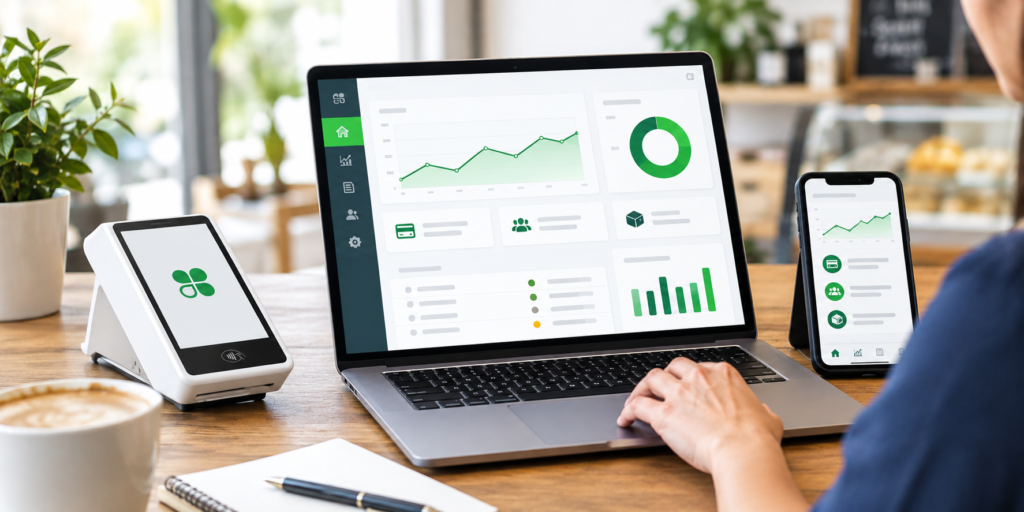
The clover dashboard gives business owners a central place to manage many of these tasks. You can use it to check sales, view reports, manage products, review employee activity, and handle other business settings. It also gives you access to business information without always needing to be at the main payment counter.
Learning how to use the dashboard can make daily business work easier. You do not need to check every feature at once. Start with the tools you use most and build a simple routine around them.
What Is the Clover Dashboard?
The Clover Dashboard is an online area where you can view and manage important parts of your business.
Depending on your account and access level, you can use it to:
- Check sales
- View payment and transaction details
- Manage products
- Track inventory
- Manage employees
- Review business reports
- Check customer information
- Update certain business settings
- Manage available apps
The dashboard can be accessed from different devices, including a computer, tablet, or mobile phone. The features you see may depend on your business setup and user permissions.
Start With the Main Business Overview
When you first open the dashboard, start by looking at the main information about your business.
Check your recent sales and other important numbers. This gives you a quick idea of what is happening during the day or over a selected period.
You do not need to study every number right away. Look for anything that stands out.
For example, you may notice that:
- Sales are higher than usual
- Refunds have increased
- A certain product is selling more
- One day is busier than another
- Sales are slower during certain hours
These details can tell you where you may need to look more closely.
Check Your Sales
Sales information is one of the most useful parts of the dashboard.
You can review sales for different periods and look at information such as total sales, net sales, average order amount, payments received, and refunds. Reports can also be filtered by things such as employees, order types, devices, and time periods.
For example, you can compare:
- Today’s sales with yesterday’s
- This week’s sales with last week’s
- Monthly sales
- Sales during busy hours
- Sales by employee
- Sales by product
Checking this information often gives you a clearer view of how your business is doing.
Review Your Best-Selling Products
Your sales data can also show which products customers buy most often.
This can be useful when planning your stock. If certain products sell quickly, you can pay closer attention to how much you have available.
You can also find products that are not selling as well.
For example, if one item has very few sales over several weeks, you may want to review its price, placement, description, or overall demand.
The goal is not to change every product. Instead, use the information to understand what customers are actually buying.
Manage Your Inventory
Keeping product information up to date is an important part of running a business.
The inventory section can be used to add products, organize items into categories, update product details, manage stock quantities, and work with product options.
For a restaurant, this could include menu items, toppings, side orders, and other options.
For a retail store, it could include product names, prices, categories, and stock amounts.
Keeping these details updated can make it easier for employees to find the right item and enter orders correctly.
Update Product Details
Product information can change over time.
You may add a new product, change a price, stop selling an item, or update the way an item is listed.
Use the dashboard to keep these details current.
An incorrect price or outdated product can cause confusion during checkout. Employees may also waste time looking for items that are no longer available.
A quick review of your product list from time to time can help keep your system clean and easy to use.
Manage Your Employees
Employee management is another important part of the dashboard.
You can create employee profiles and set different roles and permissions. This allows you to control which parts of the system each employee can use.
For example, a regular employee may only need access to order and payment features. A manager may need access to reports and other business tools.
Giving each employee the access they need can make the system easier to manage.
It can also help prevent someone from changing important settings by mistake.
Review Employee Activity
The dashboard can also help you look at sales linked to individual employees.
This can be useful when you want to review a specific transaction or understand sales activity during a certain period. Employee reports can be checked by date or selected time range.
This information can help you understand daily activity and find specific transactions when needed.
For example, if a customer has a question about a purchase, you may be able to use the available transaction information to locate the order.
Check Payments and Transactions
Keeping track of payments is important for every business.
Use the dashboard to review transactions, payments, refunds, and other available details. You can also look at orders and receipts when you need to find information about a past purchase.
Regular checks can help you spot unusual activity or numbers that need more attention.
You do not have to review every transaction manually. Use filters and reports to find the information you need.
Review Refunds and Discounts
Refunds and discounts are normal parts of many businesses, but they are still worth watching.
Check how often refunds are being made and how much money is being returned. You can also look at discounts to understand how often they are being used.
If you notice a sudden change, take some time to find out why.
For example, a rise in refunds could be connected to a product issue, an order problem, or a change in customer activity.
Looking at the numbers can help you understand the reason instead of simply noticing that the total has changed.
Use Reports to Understand Your Business
Reports turn your sales information into useful business details.
You can use reports to look at sales trends, popular products, busy periods, employee sales, refunds, tips, and other information. Many reports can be filtered by date and other details.
For example, you may discover that your business is busiest on certain days or during certain hours.
This information can help you plan your work schedule, stock levels, and daily operations.
Find Your Busy Hours
Knowing when your business gets the most customers can help you plan ahead.
Look at your sales by time and day to find busy periods.
If sales are usually higher during certain hours, you may need more employees during those times. If another period is usually quiet, you may be able to plan your staff schedule differently.
You can also use this information to prepare products and stock before your busiest periods.
Keep Business Settings Updated
The dashboard can also be used to manage some important business settings.
Depending on your account and permissions, you may be able to update tax details, service charges, employee information, tipping settings, printer options, and other setup details. Some settings require administrator or owner access.
Before changing a setting, make sure you understand what it does.
It is also a good idea to review your business details from time to time. Old information can cause problems if it is left in the system.
Manage Customer Information
Customer information can also be useful when managing your business.
Where the feature is available and customers give permission, you can create customer profiles and connect purchases with customer information. This can help you understand buying habits and keep useful customer records.
You can use this information to better understand your regular customers and their purchase history.
Always handle customer information carefully and follow the rules that apply to your business.
Check Your Business From Different Devices
One useful part of the dashboard is that you do not always need to be at your main register to check business information.
Depending on your setup, you can access dashboard information from a computer, tablet, or mobile phone.
This can be useful when you are away from the store or need to quickly check sales.
For example, you could check the day’s sales from your phone or review a report from a computer.
Make a Simple Daily Routine
You do not need to spend hours using the dashboard.
A simple routine can be enough.
Every Day
Check:
- Daily sales
- Refunds
- Payments
- Important transactions
Every Week
Review:
- Popular products
- Employee activity
- Busy days and hours
- Inventory
Every Month
Look at:
- Monthly sales
- Sales trends
- Product performance
- Refunds and discounts
- Business settings
This routine can help you stay informed without spending too much time on reports.
Keep Employee Access Safe
The dashboard contains important business information, so employee access should be managed carefully.
Only give employees the access they need for their jobs. Review permissions when someone changes roles.
If an employee leaves your business, update or remove their access when needed.
Also, keep account login details private. Good access habits can help protect your business information and settings.
Use the Information to Plan Ahead
The main purpose of the dashboard is not just to show numbers.
The information can help you understand what is happening in your business.
For example:
- High sales of one item may mean you need more stock.
- Busy hours may show when you need more staff.
- Low sales of a product may require a closer look.
- Higher refunds may point to a problem that needs attention.
- Changes in sales can help you plan for future weeks.
You still make the business decisions. The dashboard simply gives you information that can make those decisions easier to understand.
Keep Your Dashboard Information Updated
The information in your dashboard is most useful when your business details are kept current.
Update product prices when they change. Add new items when you start selling them. Remove old products when needed. Keep employee profiles and permissions up to date.
Small updates can prevent larger problems later.
It is also helpful to teach employees how to use the features they need. When everyone understands the basic system, there is less confusion during busy periods.
Final Thoughts
The clover dashboard can bring many daily business tasks into one place. You can use it to check sales, review transactions, manage products, track inventory, handle employee access, and study reports.
The key is to use the dashboard regularly instead of only checking it when something goes wrong. A few simple checks each day and a deeper review each week can give you a better view of your business.
If you are looking for payment and business solutions, you can learn more from Florida Payments.
